Introduction
ChemSpider supports the use of chemical structures as search queries. There are
lots of different ways that you can input your structure. This page will outline how to perform structure searches to find
exact matches, as well as
substructure searches and
similarity searches. It will also cover how to construct
advanced searches, which can combine substructure or similarity searches with other kinds of search.
Basics

Step 1
Select the More Searches menu from the top toolbar and choose Structure Search from the dropdown menu. Click on the structure picture to open the ChemSpider Input Chemical Structure dialog. The Draw Structure tab may be selected(default setting) but this tab may not not be your current default setting.
Step 2
There are three ways to enter a chemical structure:
-
Select the Convert identifier to structure tab. This tab allows you to enter a chemical name and auto-generate a structure by selecting Convert.
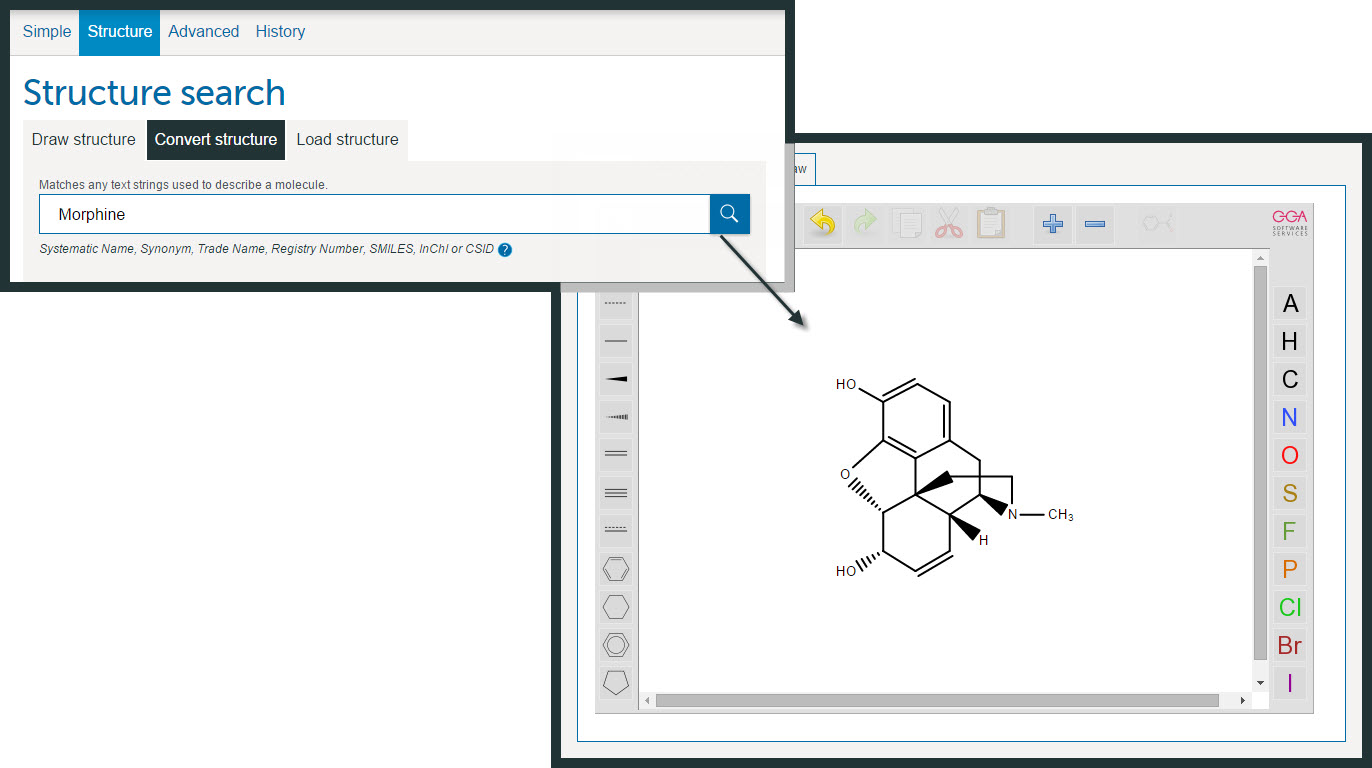
Example showing how you can use the Convert structure option to generate an editable structure from a name . Eg. Morphine
Click Accept to accept the structure or Draw Structure to change features of the structure. For example you might want to change the pre-defined stereochemistry of the bonds. On completion of the editing of the structure you can Clean Molecule, Accept or Cancel.
-
Alternatively, you can draw the structure in your favourite drawing package and save it as a mol, sdf, cdx or skc file to your desktop. You can then upload the file to ChemSpider using the Load button. This is also the way to use any existing structure files you have in a ChemSpider search.
There are also options to Load a structure from a JPEG or GIF image, which will run an OCR process and let you correct any errors before accepting the structure.
-
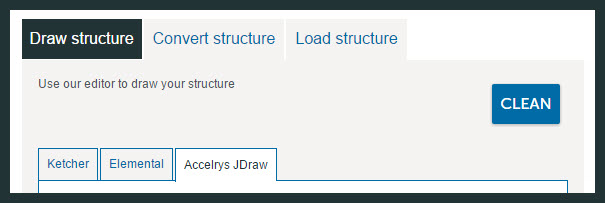
You can also draw the structure using one of the structure editors available in ChemSpider, we currently provide two HTML 5 editors Ketcher and Elemental, you can select your preferred editors using the tabs. Click on the left pane of the Structure tab to activate and select the tools.
Step 3
Click on
Search and on completion of the search, you should either get to the corresponding record (in certain cases where there is no exact mass, you may see a list of results).

Substructure Search
Substructure searching will return all results which contain the structure you have entered, including the exact structure you have entered if it is on ChemSpider.
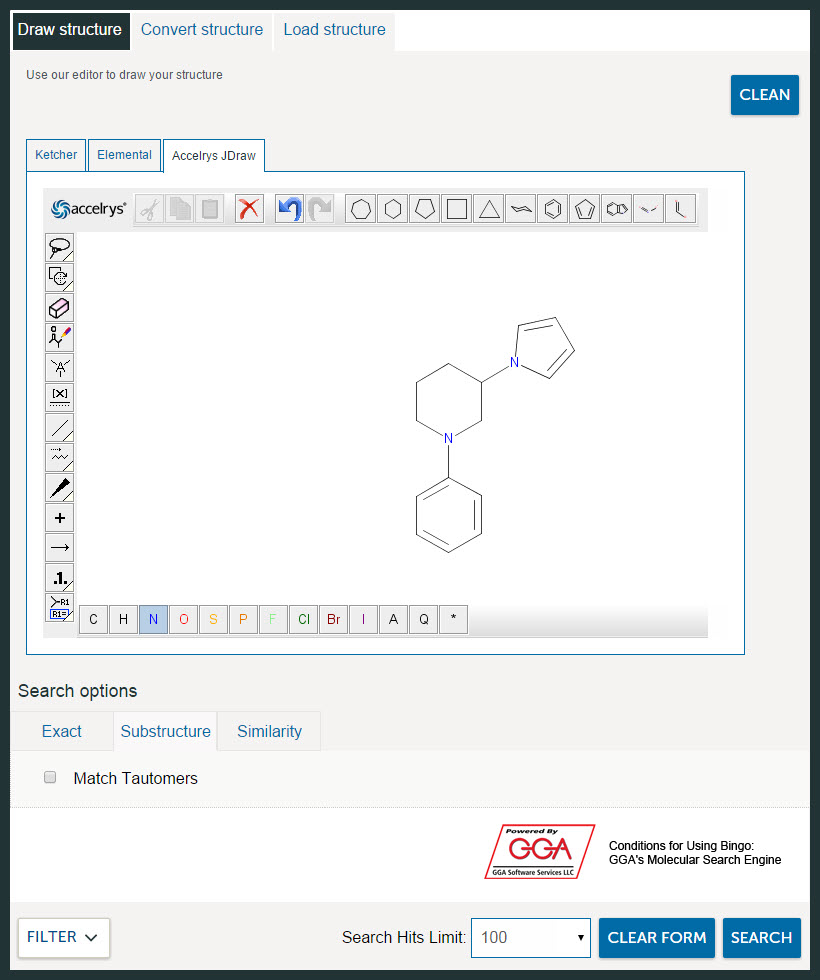
To perform this kind of search, draw, convert or upload your structure (see
Structure Search Basics for more information). Then select the “Substructure” tab, and click “Search”.
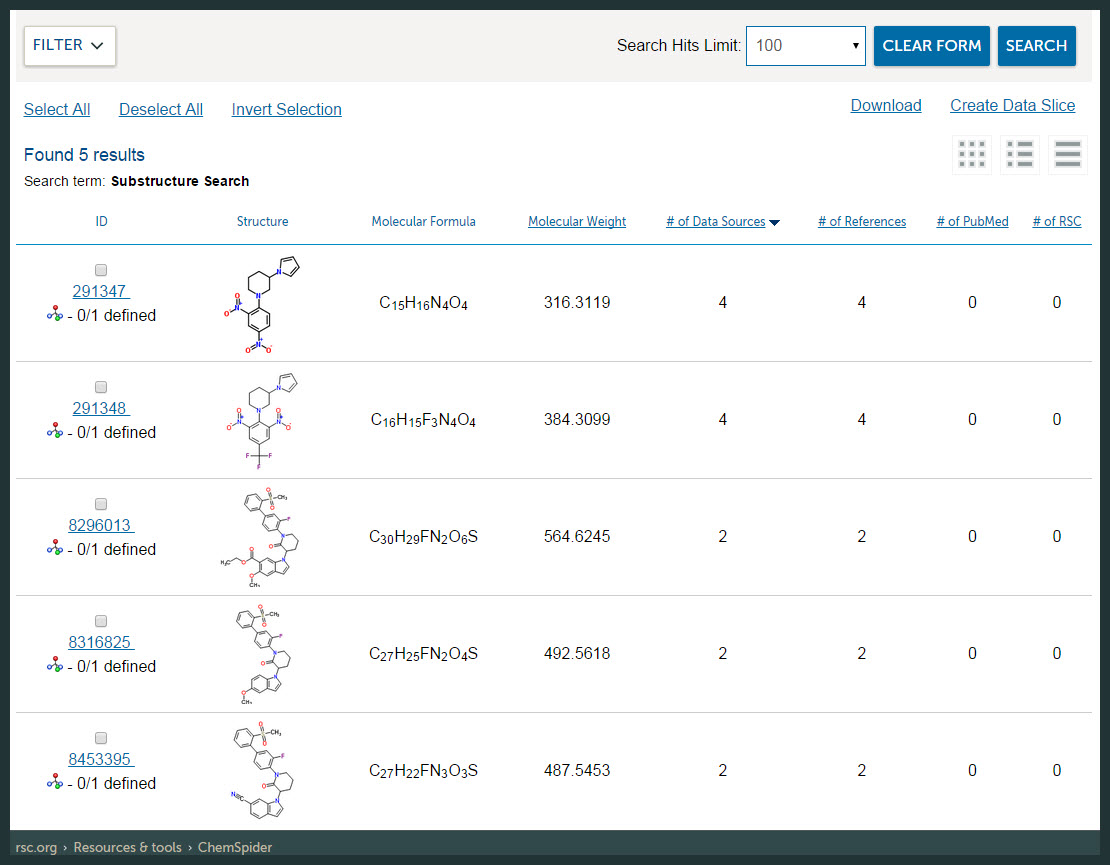
This type of search can be combined with properties search in order to narrow your results. For more information, check out
Advanced Search.
Similarity Search
Similarity searching will return results which are chemically similar to the structure you have entered. Unlike substructure search, it is not limited to compounds which contain the exact substructure you have entered. However, it will return compounds which have many motifs in common. In order to ensure that the results you get are more likely to be relevant, most of the time it is best to limit Similarity Searching to a minimum of 90% similarity.
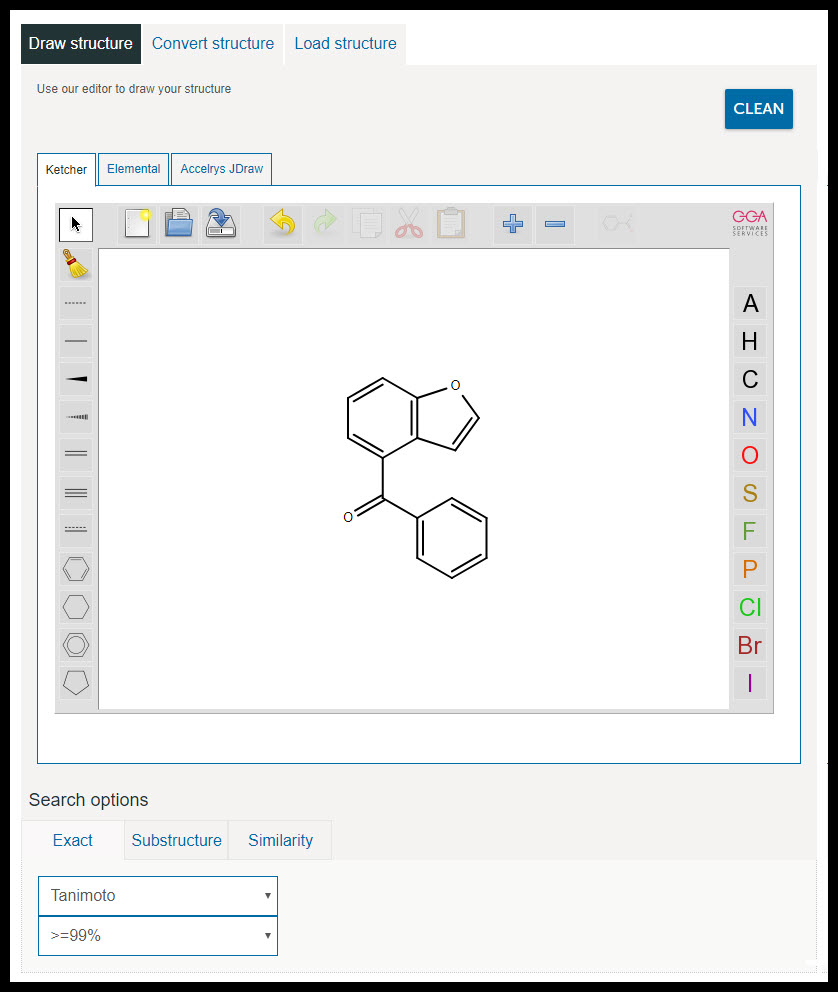
To perform this kind of search, draw, convert or upload your structure (see
Structure Search Basics for more information). Then select the “Similarity” radio button. At this point, you will be able to specify percent similarity and the similarity measure you want to use (Tanimoto, Tversky, or Euclidean). Each option determines similarity slightly differently, so if you don’t get the results you want on one try the others. Then click “Search”.

The above similarity search may be repeated with the
Tversky search algorithms and the results should be similar.
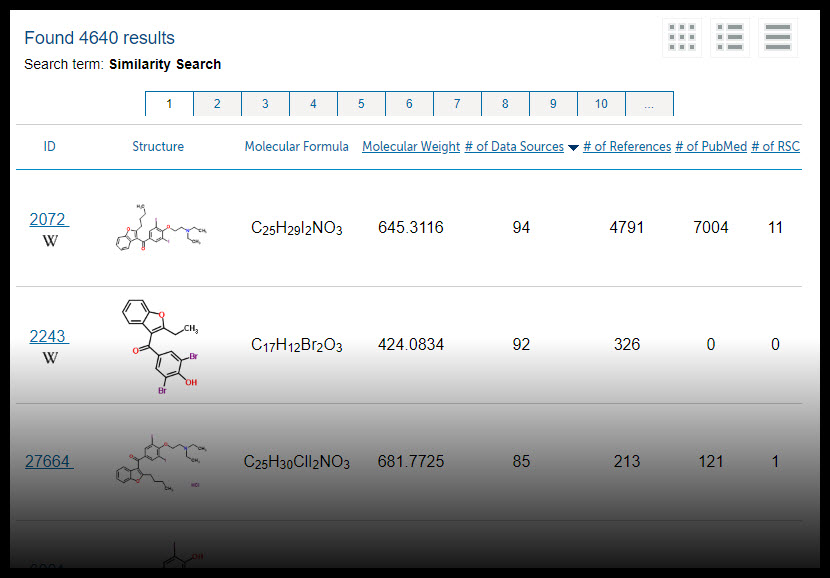
When the search is repeated with the Euclidean algorithm, a much larger set of structures are returned(> 4,000) as shown in the following screen.
This type of search can be combined with properties search in order to narrow your results. For more information, check out
Advanced Search.
Advanced Search
Advanced searching is one of the best ways of finding information about a compound or helping to identify an unknown. With this type of search (from the Advanced Search page), you can search by many different kinds of properties like molecular formula or molecular weight, physicochemical properties like melting point, identifiers like trade or systematic names, or structure.
The range of search options available are:
You can also combine any of these searches in powerful ways, such as searching by substructure and molecular formula, or melting point and molecular weight.
Search by Structure
This option allows you to perform a structure search in combination with other searches. Please read Structure Search Basics for how to enter in a new structure, convert an identifier, or upload a structure. The Substructure and Similarity Search sections will tell you more about these kinds of search.
It is normally most useful to perform an Advanced Search when you are not quite sure of the exact structure. This means that you should normally perform a Substructure or Similarity Search. If you have performed a combined structure search alongside other properties and no results have been returned, check to make sure that you do not have “Exact Search: Exact Match” selected, as this is the most common source of error.
Search by Identifier
This option lets you search by systematic, trivial, or other name, as well as registry numbers, SMILES or InChIs. You can select the type of identifier from the radio buttons on the right.
Search by Elements
The top periodic table allows you to select elements which must be present, and the bottom periodic table allows you to choose which elements must not be present. You can combine these two filters – searching for compounds that must contain C, H, O, N and F and excluding all elements except C, H, O, N and F.
Search by Intrinsic Properties
This option lets you search by one or more properties intrinsic to the molecule. When searching by Molecular Formula you can specify ranges in parentheses – for instance, C7H(10-14)O(0-4) will return results with exactly 7 carbons, 10-14 hydrogens, and 0-4 oxygens. With molecular weight, nominal mass, average mass and monoisotopic mass you can search either by inputting a minimum and maximum value, or a +- error.
Search by Calculated Properties
These options let you search by properties we have calculated using algorithms provided by ACD/Labs. Typical properties of interest include log P, log D, polar Surface Area and Molar Volume. In drug research the Rule of 5 metric is commonly used for assessing druglike molecules. For example, you can search for molecules with calculated properties of Log P of 1.3 to 1.7, Polar Surface Area of 15 to 28 and Molar Volume of 160 to 200.
Search by Data Source
This lets you narrow down your search to compounds which were deposited by a specific datasource, like MeSH, Alfa Aesar, or Wikipedia. You can also search by datasource type, like Spectroscopy Databases or Substance Vendors.
Search by LASSO Similarity
LASSO Similarity estimates the biological activity of a particular compound based on surface similarity, so you can find compounds which are likely to have affinity for estrogen receptors or for acetylcholinesterase. This is most useful for toxicology or pharmaceutical applications, and allows users to find selective ligands a that are much more active at one site that they are at another site. A typical query might be to find structures with a LASSO score of >= 0.95 at one site and a LASSO score of <= 0.10 at the other site.
Search by Supplementary Information (physicochemical properties, etc.)
This is where you can search for text properties like appearance or experimental solubility, or numeric properties like logP, melting-point or density. Note that only a subset of our records have supplementary information at this time.
Text properties:
When performing a text properties search, you can use * to indicate wildcards at the end of search terms. If you want to match the exact term you have entered, enclose your search term in quotes.
Numeric Properties:
When performing a numeric properties search, you can specify a minimum and maximum value or +/-, and can specify units. These will automatically be converted to standard units as part of the search, so that a search for a melting point of 32°F and a search for a melting point of 0°C will return the same results. In addition, since boiling point is dependent on pressure, we convert boiling point searches to approximate the temperature at atmospheric pressure.
Any of the above searches can be run on their own or in combination with any others. This means you can search by substructure and molecular formula, or melting point and molecular weight, giving you powerful options for finding the information you are looking for or identifying unknown compounds.
This is where you can search for tags like Antimicrobial or Insecticide.
|

|